Posts

Showing posts with the label Refund

Crediting Invoices for a Customer That Are Associated with a Purchase Order Drop Shipment

Image
If you've ever received the following message when trying to Correct, Cancel, or Create Corrective Credit on a posted sales invoice, then this post is for you. You cannot use the cancel or correct functionality because the invoice line is associated with purchase order XXXX via a Drop Shipment. This error occurs because the system locks invoices tied to purchase order drop shipments, preventing you from using the standard correction tools. But don't worry, there are alternative approaches. Below are my recommendations based on different scenarios. Scenario 1: Customer was charged the wrong price If you accidentally billed the customer incorrectly (wrong item price or freight amount) you have two main options: Create a Sales Credit Memo for the difference.  Reverse the full invoice and issue a new invoice with the correct pricing. After posting the credit memo, make sure to apply it against the original invoice so everything balances out. 👉 Don’t forget about sales tax:  If yo...
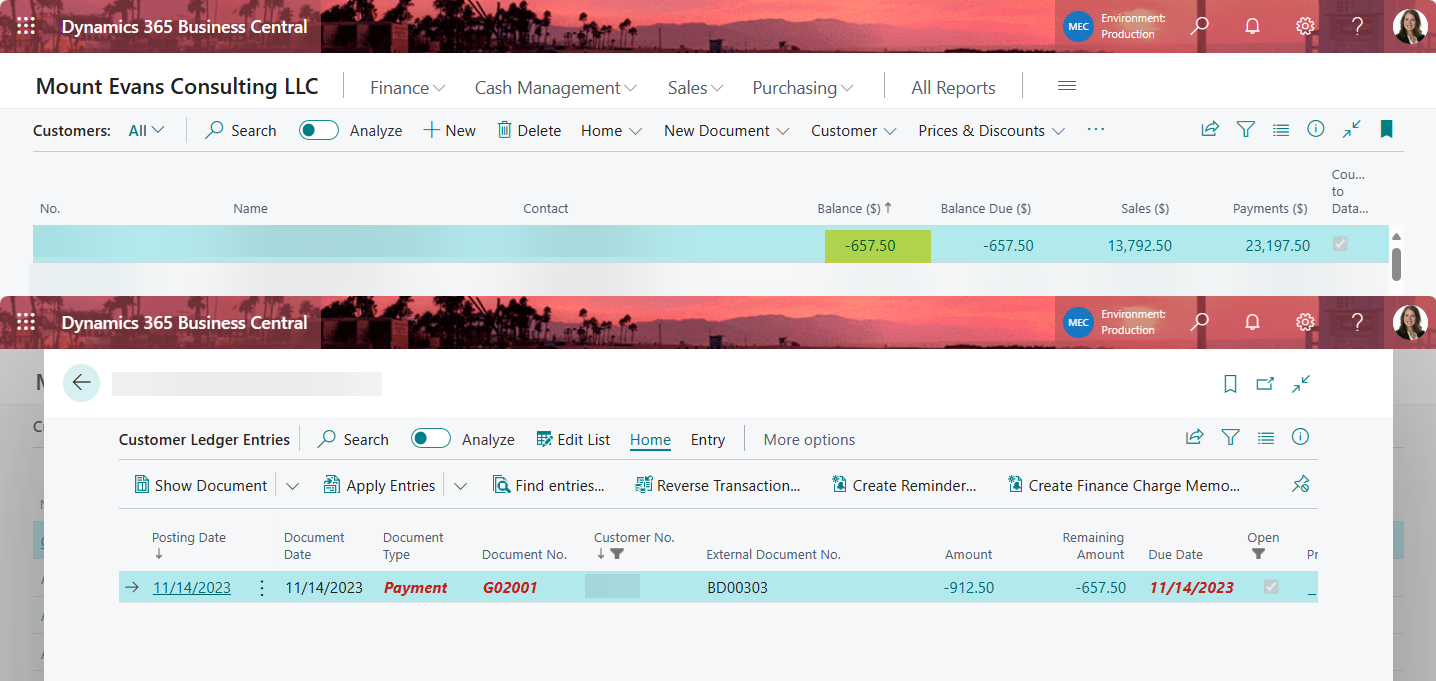
Refund a customer overpayment in Microsoft Dynamics 365 Business Central

Image
Scenario: a customer overpays you and you'd like to issue them a refund.  Processing Refunding the customer in Dynamics 365 Business Central isn't hard. You just need to be mindful of the document type is all.  Verify the customer you'd like to pay the refund to. In this case I go to the customer list and click on the balance amount to open the customer ledger that shows only the open or outstanding items. I take note of the customer number and amount. Navigate to the Payment Journal and open batch you'd like to use. Within the Payment Journal add line for Refund to the customer. Be mindful that the Document Type should be Refund in this case.  Next step is to apply the refund to the outstanding payment on the customer account. Click on Apply Entries on the Action Bar.  Select the line you'd like to apply the refund to and then click on Set Applies-to ID on the Action Bar. This will populate the Applies-to ID field on the selected line. Click OK to close the page....