Posts

How to manage deferrals (vendor prepayments) within Microsoft Dynamics 365 Business Central
Image
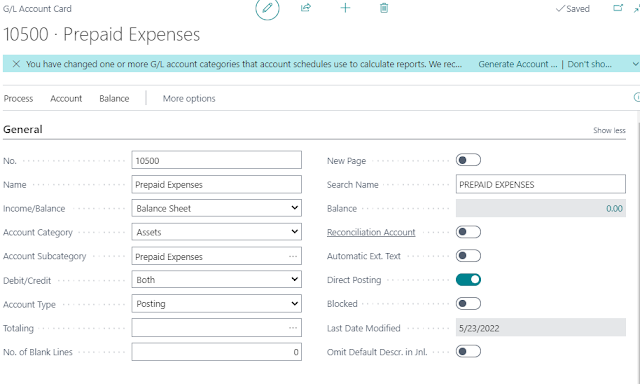
Within Microsoft Dynamics 365 Business Central there is a module called Deferrals that allow you to "defer" revenue or expenses. Scenario We pay a vendor for a 12-month subscription, and we want the expenses to be allocated to the correct periods.  Vendor: Mount Evans Consulting bills for 12-months of Business Central licensing at $840 per year, $70 per month, per user. Solution Set up a prepaid expenses G/L account. Next step is to setup a Deferral Template. Search for Deferral Templates and then click on New. Setup the Deferral Template Card with the information pertaining to what you're trying to do. In this case I've set up the card with information that will allow me to enter a vendor invoice into the system that will hit the Prepaid Expenses G/L account and then will be automatically 'amortized' into the right periods starting the beginning of the next period.  For example if I post a vendor invoice with todays date 05/23/2022 for $840, the system will c...
Applying posted credit memos to posted invoices in Microsoft Dynamics 365 Business Central

Image
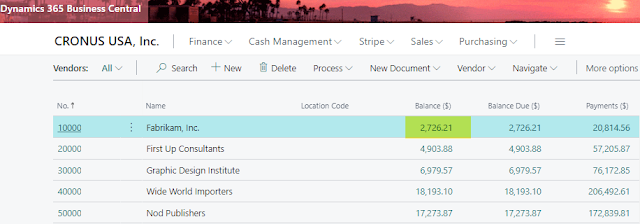
Applying posted credit memos to posted invoices isn't a hard task to complete in Microsoft Dynamics 365 Business Central. The example I use below is for a vendor credit, but the same process applies to customers.  Version: US Business Central 20.0 Open up the vendors list. Search for vendor that you'd like to apply the credit memo to an invoice for.  Click on Balance field to open up Vendor Ledger Entries window. This will show all the 'open' documents on the vendor ledger. Select the line for the Credit Memo that you want to apply to a posted invoice. Click Process > Apply Entries Within the Edit - Apply Vendor Entries window select the line(s) that you'd like the credit memo applied to.  Click Process > Set Applies-to ID This will put the users name into the Applies-to ID field on the line selected. To post the application select Process > Post Application. Written by: Kristen Hosman, Microsoft MVP

Dimension Corrections in Microsoft Dynamics 365 Business Central

Image
If you've ever coded something to the wrong dimension and noticed after posting don't just assume a journal entry is the only way to fix it. Microsoft has included a Dimension Corrections tool within Business Central and it's pretty easy to use. Let's walk through the process of updating a posted entries dimension where the user forgot to add the dimensions in this case. Same process would apply if you needed to change a posted dimension as well. Within the General Ledger Entries page, select the line for the entry that needs to be corrected, then click on Entry > Correct Dimensions.  Within the Draft Dimension Correction window go ahead and update the description if needed and mark Update Analyses Views if you're using those.  Next section Dimension Correction Changes go ahead and add the updates. In my case my entry is missing two dimensions so I'm going to add each of those in there. Since my dimensions were missing the Dimension Value Code field is blank,...

Migrate business data - QuickBooks Online to Dynamics 365 Business Central

Image
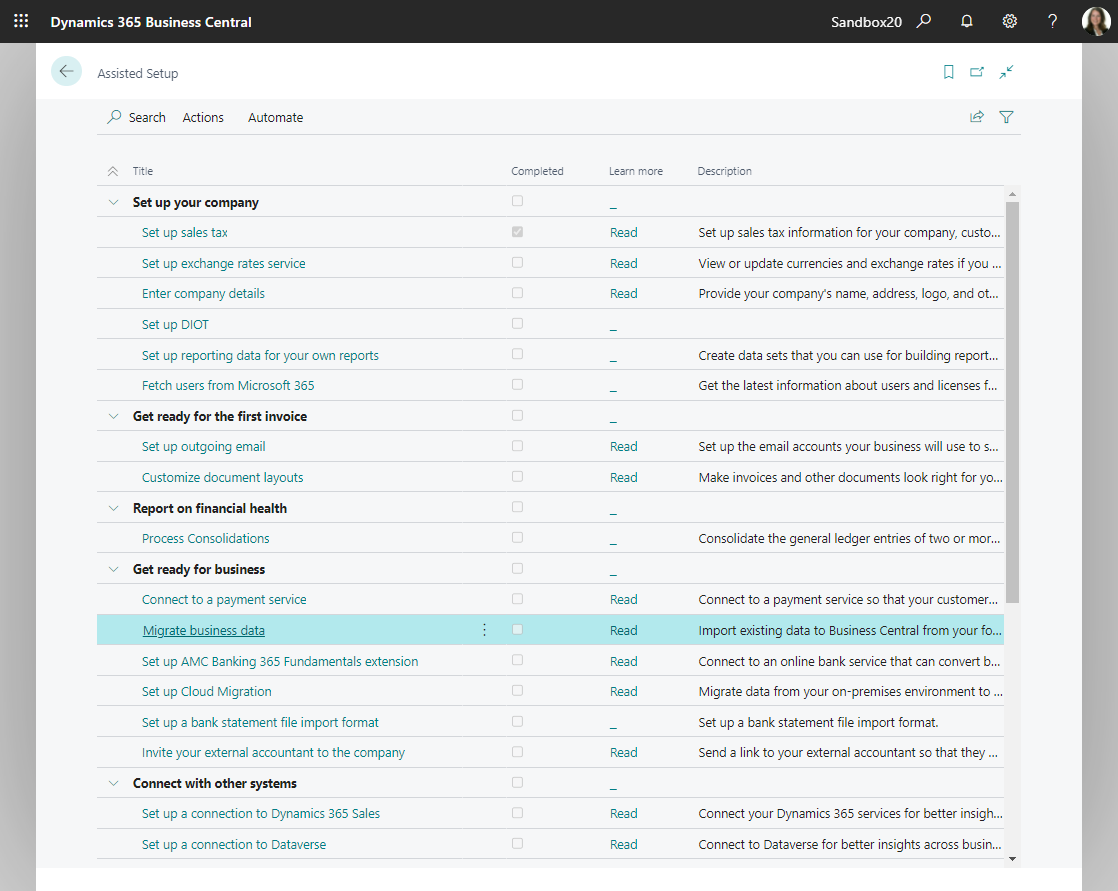
Background I attempted migrating from QuickBooks desktop to Dynamics 365 Business Central years ago when I moved my own company off QuickBooks desktop. At that time, I didn't have any success, so I thought I'd give it a try again in Business Central version 20 (preview) to see if I could get it to work. Spoiler alert, I ran into the same error message from years ago however this time around I was able to use Google to assist with solving the issue - keep on reading to learn more about account numbers. Lessons Learned Create new company (blank or with production data) prior to migrating data and log into that company before starting the migration. If you miss this step, then the migration tool will try to override information in the current company. I did get a message warning me that customers were already setup, and I had a choice to delete them at that time. I just canceled out of the migration tool and setup a new company and then logged into it and started over.  Open BC co...